
Multi-Stop routing lets you include intermediate stops directly in iQ RateView Single-Lane, while Custom Attributes allow you to add and reuse additional details in the Quote Calculator. These features support more accurate routing and consistent quoting without leaving iQ.
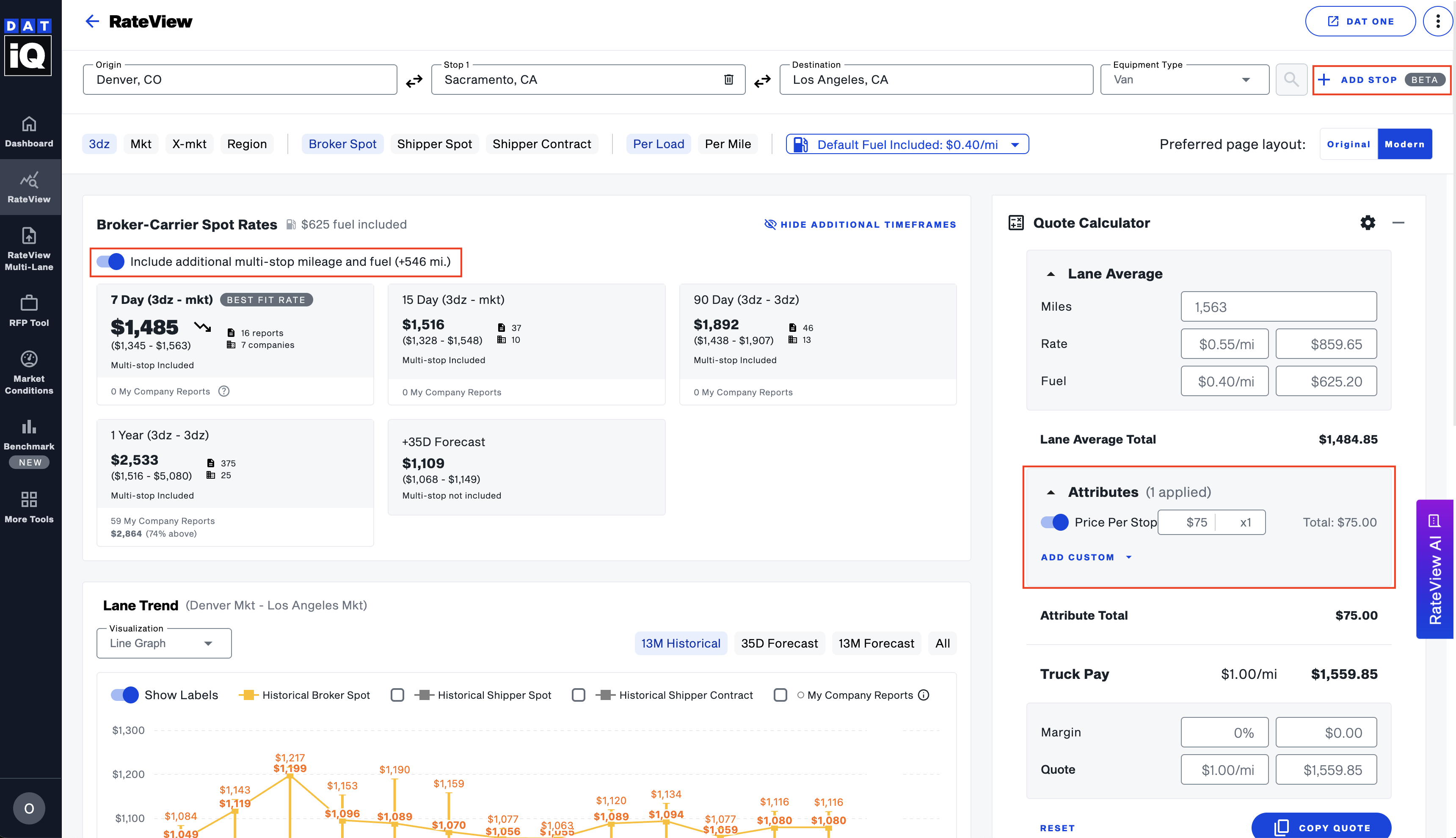
How to Use Multi-Stop Routing in iQ RateView Single-Lane
- Navigate to iQ RateView.
- Start by entering your standard origin and destination locations, just as you would for a single-stop lane.
- Use the ADD STOP option to add additional stops between the origin and final destination. You can add up to four additional stops.
Note: Multi-Stop routing is fully integrated into the existing Quote Calculator and search controls, so no separate workflow is required.
- Review the sequence of stops to ensure they reflect the actual route you want to price.
- Multistop pricing uses the rate per mile from the first stop to the final stop. That per-mile rate is then applied to the total mileage of your actual trip, including all additional stops . The Quote Calculator also adds a separate stop-off charge for each additional stop..
Note: This is not a newly modeled or DAT-created rate; it is a RateView rate that accounts for the full multi-stop mileage.